Free Adobe Lightroom presets can dramatically speed up photo editing without costing a dime. Our team has tested dozens of preset packs over the years, and we've narrowed it down to five that consistently deliver professional-looking results across a range of photography styles. Whether someone is editing landscape photography shots or casual portraits, these presets offer a solid starting point that most photographers can build on.
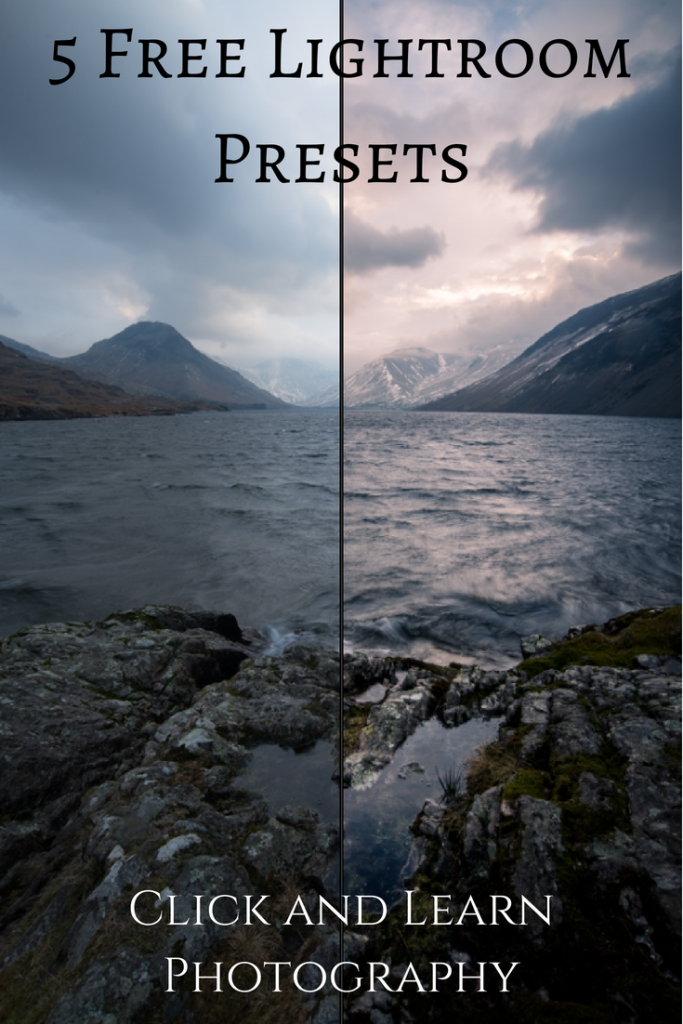
Presets work by saving a combination of editing adjustments — exposure, contrast, color grading, sharpening — into a single click. Instead of spending 15 minutes tweaking every slider, a preset applies those changes instantly. The five picks we're covering here range from warm vintage tones to clean, modern looks, and each one has earned its spot through real-world use on actual photo projects.
Of course, presets aren't magic buttons. They work best when applied to well-exposed images, ideally shot in RAW format so there's maximum data for Lightroom to work with. Let's walk through what's needed to get started, break down each preset pack, and cover some common misconceptions along the way.
Contents
Essential Software and Setup for Free Lightroom Presets
Before downloading anything, it's worth making sure the right tools are in place. Adobe Lightroom comes in two main versions, and the preset format differs slightly between them. Getting this wrong is the most common reason free Adobe Lightroom presets fail to load properly.
Lightroom Classic vs Lightroom CC
Here's a quick breakdown of what matters for preset compatibility:
- Lightroom Classic (desktop-only) uses
.lrtemplateor.xmpfiles and stores them locally - Lightroom CC (cloud-based) uses
.xmpfiles and syncs presets across devices - Older
.lrtemplatefiles convert automatically when imported into newer versions - Mobile Lightroom accepts
.dngpreset files — a different format entirely
Our team recommends downloading presets in .xmp format whenever possible. It's the most universally compatible option and works in both Classic and CC without conversion issues.
Installing Presets the Right Way
Installation takes about 30 seconds once someone knows where to look. Our detailed guide on how to install Adobe Lightroom presets covers every version step by step, but here's the short version:
- Open Lightroom and go to the Develop module
- In the Presets panel on the left, click the "+" icon
- Select "Import Presets" and navigate to the downloaded files
- Select all
.xmpor.lrtemplatefiles and click Import - The presets appear immediately in the panel, ready to use
One tip from our experience: always create a dedicated folder for free presets to keep them separate from any paid or custom ones. This saves headaches later when the library grows.
Which Free Presets Work Best by Skill Level
Not all free Adobe Lightroom presets are created equal. Some packs are designed with simplicity in mind — one click and done. Others offer more nuanced adjustments that assume the user already understands tone curves and HSL sliders. Here's how our five picks break down.
Best Picks for Beginners
Anyone just starting out with Lightroom editing benefits most from presets that produce subtle, natural-looking results:
- Clean Portrait Pack — Soft skin tones, gentle contrast lift, and slight warmth. Works well on indoor and outdoor portraits without oversaturating
- Natural Landscape Set — Enhances greens and blues while keeping the overall look realistic. Pairs well with shots from sunrise photography sessions where the light is already doing most of the work
- Bright & Airy Collection — Lifts shadows, reduces contrast slightly, and adds a clean, modern feel. Popular for lifestyle and travel photography
These packs require minimal tweaking after application. Most people can apply them, make one or two small exposure adjustments, and export.
Pro tip: Always apply free presets to a RAW file rather than a JPEG — RAW files contain far more color and exposure data, giving the preset much more to work with.
Options for Experienced Editors
Photographers with more editing experience tend to want presets that serve as a creative starting point rather than a finished look:
- Film Emulation Pack — Mimics the grain, fade, and color shifts of classic film stocks like Kodak Portra and Fuji Superia. These presets adjust tone curves aggressively, so understanding how to dial them back is helpful
- Moody Cinematic Set — Deep shadows, teal-and-orange color grading, and strong vignetting. Best suited for urban scenes, cityscapes, and dramatic landscapes
Experienced editors often use these as a foundation, then customize the white balance, clarity, and color grading to match the specific image. The preset handles 60-70% of the work, and manual adjustments finish the job.
Common Myths About Free Lightroom Presets
There's a surprising amount of misinformation floating around about free presets. Our team has heard most of these myths repeated in photography forums and social media groups, so let's clear a few up.
Myth: Free Always Means Low Quality
This one comes up constantly. The assumption is that if someone isn't charging for a preset, it must be poorly made. In reality, many professional photographers and software companies release free preset packs as a way to showcase their editing style or attract customers to larger paid collections.
Some of the best free packs available come from:
- Adobe themselves (bundled with Creative Cloud subscriptions)
- Camera manufacturers who include brand-specific color profiles
- Professional photographers building an audience
- Photography education sites offering them as learning tools
The quality of a preset depends on who made it and how much testing went into it — not whether it has a price tag.
Myth: Presets Replace Manual Editing
Presets are a starting point, not a finish line. Every photo has different lighting, color temperatures, and exposure levels. A preset that looks perfect on one image might look terrible on another shot taken five minutes later in different light.
Our team treats presets the same way a painter treats an undercoat — it sets the foundation, but the detail work still happens manually. The photographers who get the most out of free presets are the ones who learn what each slider does and adjust accordingly after applying.
Free vs Paid Presets: What's Actually Worth the Money
This is the question everyone eventually asks. Free Adobe Lightroom presets can go a long way, but paid packs do offer some genuine advantages. Here's an honest comparison based on our team's experience with both.
Side-by-Side Comparison
| Feature | Free Presets | Paid Presets ($10–$60) |
|---|---|---|
| Number of presets per pack | 3–10 | 20–100+ |
| Preset quality | Good to excellent | Consistently excellent |
| Variety of styles | Limited (1–2 looks) | Wide range of variations |
| Mobile compatibility | Sometimes included | Usually included |
| Customer support | None | Email or chat support |
| Updates for new Lightroom versions | Rare | Typically included |
| Tutorials or guides included | Rarely | Often included |
For most people just getting into photo editing, free presets cover the essentials. The jump to paid packs makes more sense once someone has a clear editing style and wants more refined variations within that style.
Hidden Costs to Watch For
Not all "free" preset offers are straightforward. A few things our team has noticed over the years:
- Email-gated downloads — Many sites require an email signup before providing the download link, which often results in a flood of marketing emails
- Bundled software — Some preset packs come packaged with browser extensions or editing tools that nobody asked for
- Watermarked previews — A few sites show beautiful preview images but the actual preset produces noticeably different results
- Outdated formats — Presets built for Lightroom 4 or 5 may not convert cleanly in current versions
Sticking with well-known photography sites and Adobe's own marketplace avoids most of these issues. When in doubt, a quick search for reviews of the specific preset pack usually reveals any problems.
Building a Preset Library That Lasts
Downloading five free preset packs is just the beginning. Over time, most photographers accumulate dozens — sometimes hundreds — of presets. Without a system, that collection becomes unusable. Here's how our team manages it.
Organizing and Naming Presets
Lightroom allows folder-based organization within the Presets panel. Our recommended structure:
- Group by style — Create folders like "Portraits," "Landscapes," "Film," and "B&W"
- Prefix with source — Name presets like "FREE-NaturalLandscape-01" or "PAID-Portra400-Warm" so the origin is always clear
- Delete what doesn't get used — If a preset hasn't been applied to anything in six months, it's taking up space and adding visual clutter
- Keep backups — Export favorite presets to an external drive or cloud storage in case of a Lightroom reinstall
A clean, well-labeled preset panel makes editing faster and more enjoyable. Most people underestimate how much time gets wasted scrolling through unnamed presets trying to find "that one that looked good on beach photos."
Creating Custom Presets from Free Ones
This is where free Adobe Lightroom presets really pay off. Instead of treating them as finished products, experienced photographers use them as templates for building custom looks. The process is simple:
- Apply a free preset that's close to the desired look
- Fine-tune the settings — adjust white balance, tweak the tone curve, modify HSL sliders
- Save the result as a new preset with a descriptive name
- Apply the custom preset to similar images and refine further
Over time, this approach builds a personalized preset library that matches a photographer's exact style. It's one of the most effective ways to develop a consistent look across a portfolio, whether that portfolio focuses on mountain photography or street portraits.
The combination of starting with free presets and gradually building custom ones means most photographers never need to spend significant money on editing tools beyond the Lightroom subscription itself. It's a practical, budget-friendly approach that scales with skill level.
Frequently Asked Questions
Are free Adobe Lightroom presets safe to download?
Generally, presets from reputable photography websites and Adobe's own marketplace are safe. Preset files (.xmp and .lrtemplate) are plain text files containing editing parameters — they cannot contain viruses. However, our team recommends avoiding preset downloads from unfamiliar sites that require installing additional software, as those bundled installers can pose risks.
Do free presets work on Lightroom Mobile?
Most free preset packs are designed for the desktop version of Lightroom. Mobile Lightroom uses .dng files as presets, which is a different format. Some creators offer mobile-compatible versions, but it's worth checking before downloading. Presets synced through Lightroom CC (cloud-based) will appear on mobile automatically.
Can presets be used for commercial photography projects?
In most cases, free presets can be used on images intended for commercial use. The preset itself is a tool — like a brush or filter. However, some preset creators include license restrictions that limit commercial usage, so reading the terms of service before applying them to client work is always a good idea.
Why do presets look different on every photo?
Presets apply the same adjustments regardless of the original image's lighting, white balance, or exposure. A preset tuned for a warm sunset will look entirely different on a cool-toned indoor shot. This is normal behavior, and most presets require minor tweaking after application to look their best on any given image.
How many presets should a photographer have?
There's no ideal number, but our team finds that 15–25 well-organized presets cover most editing needs. Having hundreds of presets tends to slow down workflow rather than improve it. The goal is having a curated set that matches common shooting scenarios, not collecting every free pack available.
Do presets work the same on JPEG and RAW files?
Presets technically apply to both formats, but the results differ significantly. RAW files contain much more color and exposure data, so presets have more information to work with and produce better results. Applying a preset to a heavily compressed JPEG often leads to banding, noise, or unnatural color shifts.
Can presets be shared between Lightroom Classic and Lightroom CC?
Presets saved in .xmp format are compatible with both versions. Lightroom CC syncs presets through Adobe's cloud, while Classic stores them locally. Importing the same .xmp file into both versions will produce identical results, making it easy to maintain a consistent editing workflow across platforms.
Key Takeaways
- Free Adobe Lightroom presets from reputable sources can match paid alternatives in quality — the five packs covered here handle everything from natural landscapes to cinematic film emulations.
- Presets are starting points, not finished edits — always shoot in RAW and expect to fine-tune exposure, white balance, and color grading after applying any preset.
- Building custom presets from free ones is the most cost-effective way to develop a consistent personal editing style over time.
- A well-organized library of 15–25 presets beats a cluttered collection of hundreds — label clearly, group by style, and delete anything that doesn't get used.
 |
 |
 |
 |

About Alex W.
Alex is a landscape, equine, and pet photographer based in the Lake District, UK, with years of experience shooting in one of Britain's most photographically demanding natural environments. His work has been featured in Take a View Landscape Photographer of the Year, Outdoor Photographer of the Year, and Amateur Photographer Magazine — publications that reflect a serious, competitive standard of image-making. At Click and Learn Photography, he shares the camera settings, gear choices, and compositional techniques he has developed through real-world shooting and competition-level work.
You can Get FREE Gifts. Furthermore, Free Items here. Disable Ad Blocker to receive them all.
Once done, hit anything below
|
|
|
|